A File Naming System You Can Keep Using
Build a simple naming pattern that makes files recognizable, sortable, and easier to retrieve without turning every save into a paperwork exercise.
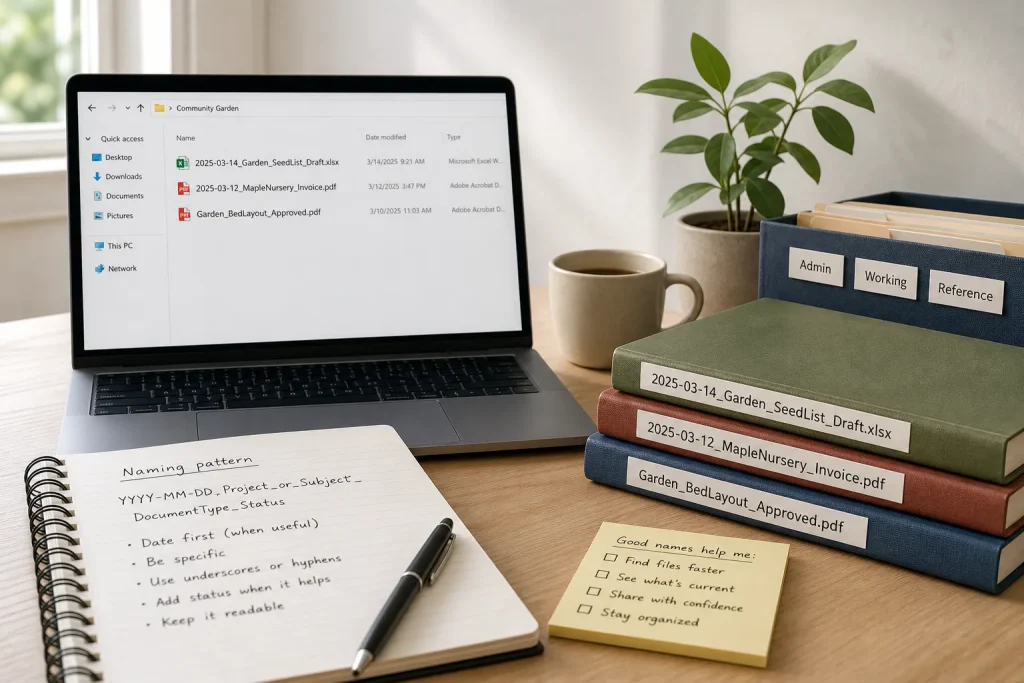
You save a document called “notes-final-new” and move on. A month later, three files with nearly the same name sit beside it, and none tells you which contains the approved meeting notes. A dependable naming system prevents that small moment of uncertainty by making each filename answer a few useful questions: what is this, when does it belong, and how does it relate to other versions?
Choose a pattern that answers useful questions
A filename should help you identify a file before opening it. For many personal and work documents, a practical pattern is:
YYYY-MM-DD_Project_or_Subject_DocumentType_Status
For example: 2025-03-14_GardenPlan_SeedList_Draft. The date comes first so files sort in calendar order in common file managers. The subject identifies the project or topic, the document type distinguishes a seed list from a sketch, and the status signals whether the file is still in progress.
You do not need every part for every file. A tax receipt may need a date, vendor, and document type; a recurring household inventory may need a room and item category instead. Treat the pattern as a set of useful fields, not a form you must fill out mechanically. If a field does not help you recognize or sort that file, leave it out.
Use a consistent date format when dates matter. A year-month-day pattern keeps dates in chronological order when filenames are sorted alphabetically. Avoid formats that make the month and day ambiguous, especially when files move between devices or people.
Make names readable and easy to sort
Choose separators that your operating systems and common apps handle comfortably. Underscores or hyphens make boundaries visible: Client-Maple_Proposal_Draft is easier to scan than ClientMapleProposalDraft. Pick one separator style for the main parts and use it consistently.
Keep the most distinguishing information near the beginning. If you often look for invoices by client, start with the client name; if you retrieve files by date, put the date first. The right order depends on how you search. A folder sorted by name only shows the beginning of each filename, so lead with the detail you most often need to compare.
Be specific without writing a sentence. “MeetingNotes” is more useful than “Document,” while “MeetingNotes_BudgetReview” may be clearer still. Avoid vague labels such as “misc,” “stuff,” and “final-final.” They shift the recognition problem to your future self.
Also check the characters your tools allow. Some systems treat punctuation or spacing differently, and files may be shared across platforms. Plain letters, numerals, hyphens, and underscores are a durable choice. Preserve the file extension, such as .pdf or .docx; it tells your device what kind of file it is.
Use folders and filenames for different jobs
Folders provide broad context; filenames distinguish items within that context. A folder called Home Renovation can hold plans, quotes, and receipts, while each filename identifies its content and date. Repeating the entire folder path inside every name can make filenames unwieldy.
At the same time, a file should remain understandable if it is downloaded, attached to an email, or moved to a shared folder. Include enough context to survive that move. A name like 2025-03-14_Invoice may be clear in one folder but mysterious elsewhere. Add a vendor or project when that context matters.
Keep folder structures shallow enough to browse without a long chain of clicks. One broad project folder with a few meaningful subfolders—such as Admin, Working, and Reference—often works better than many tiny categories. Use the filename for distinctions that recur within those folders.
Show versions without creating a pile of “final” files
Version labels are useful when they describe a real state or change. “Draft,” “Review,” and “Approved” can distinguish a working document from one ready to share. A date can identify a snapshot when the file changes over time. For collaborative work, a clear status may be more helpful than labels like “new” or “latest,” which lose meaning quickly.
Choose one approach for each kind of file. If you save dated snapshots, use the same date format each time. If you keep one current file and rely on an application’s version history, do not create extra copies just to mark every small edit. For records that must remain unchanged, keep the approved copy distinct and avoid overwriting it casually.
Do not use a filename as a substitute for sound access control or backup practices. A label such as “private” does not protect a document. Store sensitive files in an appropriate location and follow your organization’s rules for sharing and retention.
Hypothetical worked example: sorting a community garden project
Starting situation: Imagine a volunteer organizing a community garden folder with a planting sketch, a supplier invoice, and a list of seeds. The files currently have vague names, and the volunteer needs to find the invoice by supplier and the latest seed list by date. The folder is shared with other organizers, who use different computers.
Actions: The volunteer keeps all three files in a Community Garden folder, chooses hyphens between words and underscores between filename fields, and puts dates first where dates help. The names become 2025-03-14_Garden_SeedList_Draft, 2025-03-12_MapleNursery_Invoice, and Garden_BedLayout_Approved. The volunteer preserves each original file extension and avoids adding “latest” to the seed list.
Expected result and tradeoff: Sorting by name puts dated records in order, while the supplier name makes the invoice easier to spot. The approved layout is recognizable without an unnecessary date. The seed list still needs a new dated name when a distinct snapshot is saved, which adds a small task but makes earlier versions easier to distinguish.
Make the habit small enough to maintain
A naming system lasts when it fits the moment of saving. Start with the files you create often, settle on a short pattern, and apply it to new files first. Renaming an entire archive is optional; begin with a folder you use regularly and change older names only when you encounter them or need to share them.
When a filename feels awkward, ask what you would type into search to find it. Add that identifying word, date, or status, then stop. A useful name is not an exhaustive description; it is a clear signpost. Keep the pattern plain enough that someone else can follow it, and your future self will spend less time opening files just to discover what they contain.
More along these lines
Twenty-Five Minutes to Play, Five Minutes to Leave
At 8:30 p.m., Maya has half an hour before she needs to prepare for the next…
Learn a New Digital Tool Without Getting Lost
A self-paced way to explore unfamiliar software: begin with one real task, learn only the features…