How to Make a Strong Passphrase Habit
Build a memorable passphrase, store it safely in a password manager, and make the routine easy to repeat across your accounts.
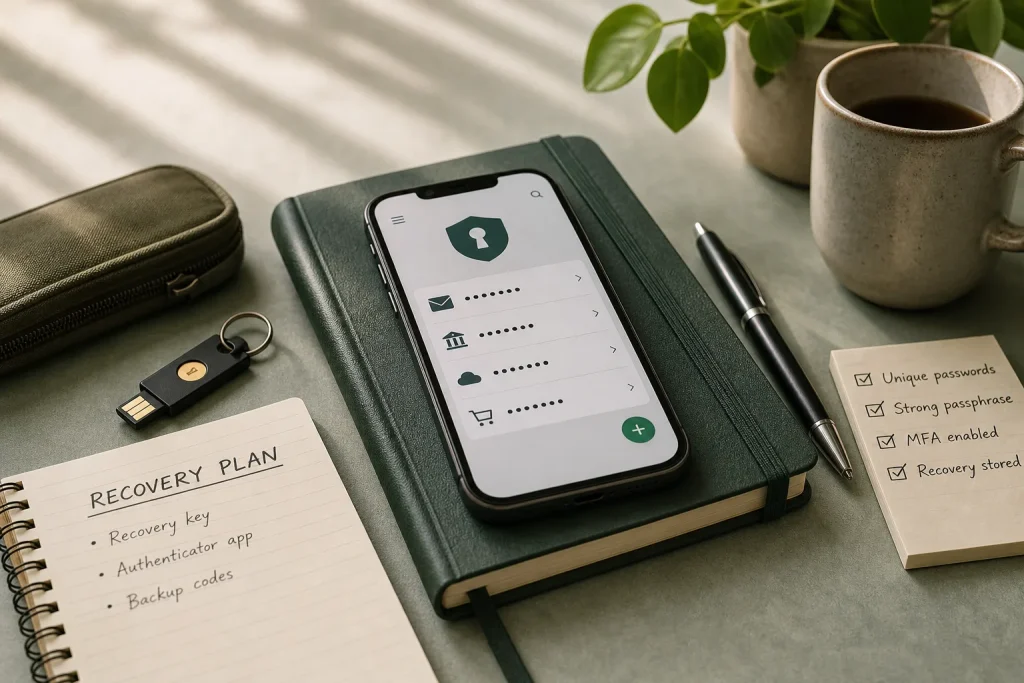
You have just signed up for a service you expect to use often. The password box is waiting, your inbox is open, and the familiar temptation is to reuse a password you already know. Pause there. A safer routine is to let a password manager create and remember most passwords, use a private passphrase to protect the manager, and give each account its own credentials.
Give each credential a clear role
A password is a secret credential a service uses as part of its sign-in process. A passphrase is a password made from several words, sometimes with separators or other characters. A longer phrase may be easier to remember than a jumble of symbols, but a familiar quotation, favorite team, or personal detail can be easier for someone to guess.
Your password manager’s main password protects access to the saved credentials, though the exact sign-in and recovery arrangements vary by provider. Follow the manager’s current setup guidance rather than assuming every service works the same way. For individual websites and apps, the manager can usually generate a unique random password, store it, and fill it in when you sign in.
This division makes the daily task manageable. Instead of inventing and memorizing a variation for every account, you remember the credential the manager requires and let it handle the rest. Some managers use a different term or sign-in method, so check the provider’s instructions for the exact credential you need to protect.
Choose a manager and learn its recovery rules
Select a password manager you can use on the devices where you sign in. Options include a dedicated app or a password manager built into an operating system or browser. Compare how it syncs, what happens if you lose a device, and how account recovery works. Check the provider’s official support pages for current details, and install the app through its official site or a trusted app store listing rather than an unfamiliar link.
Set up the manager according to its instructions. If it offers multifactor authentication, such as an authenticator app or a security key, consider enabling it. Recovery may depend on the provider’s design: it might use a recovery key, another device, an account process, or a combination. Write down the exact recovery options the provider gives you and follow its directions for protecting them. A note on an unlocked phone or an open email draft is not a safe place for sensitive recovery details.
Before moving accounts, learn how to add a login, generate a password, fill a saved login, and reach the manager’s recovery instructions. Confirm you can sign in on each device you intend to use. These small checks can prevent confusion when a device is unavailable.
Create a private, memorable master passphrase
If your manager uses a master password, aim for one that is long, private, and not reused elsewhere. A manager may offer a passphrase generator; use its settings and guidance if you choose that route. Otherwise, choose unrelated words in a way that does not rely on personal facts or a familiar sentence. Do not assume a particular word count or formula suits every manager; follow the provider’s current recommendations.
Avoid names, birthdays, addresses, favorite lyrics, and predictable sequences. Adding a familiar year or swapping a letter for a symbol does not make a reused or easily guessed phrase private. The goal is a secret you can recall and that others cannot infer from your public profile or ordinary conversation.
Enter the phrase directly into the manager’s setup field, then confirm that you can type it accurately on the devices you use. If you need a temporary written reminder while learning it, keep it physically protected and remove it when you no longer need it. Do not leave the master password in an unprotected text file, email draft, or message to yourself.
Update accounts one at a time
Start with the email account you use to reset other passwords, then address accounts that could expose sensitive information, such as banking, cloud storage, or work services. The right order depends on what each account can access. For a work account, follow your organization’s security rules and contact its support team if a setting is unclear.
For each account, open the official app or type its known address yourself. Visit the service’s security settings and change the password. Have the manager generate a unique password, save it, then sign out and back in to confirm the saved login works. Check that any recovery email address or phone number still belongs to you.
Where available, enable multifactor authentication. It adds another sign-in check, such as an authenticator-app code or approval with a security key. Recovery-code storage instructions differ by service: follow the service’s own guidance, and put codes only in a protected place you can access if needed. Avoid a plainly labeled note beside the related password.
Use a short decision checklist
- Check whether the manager is available on every device you use; if it is, set it up on those devices, and if it is not, choose a manager or built-in option that fits your devices.
- Check the provider’s official recovery instructions; if you understand and can protect the listed recovery method, store it as directed, and if you cannot, pause account migration until you clarify the process with the provider.
- Check whether your master passphrase is private and unused elsewhere; if both are true, use it as instructed by the manager, and if either is false, create a different one before saving credentials.
- Check whether a saved login works after a password change; if sign-in succeeds, continue to the next account, and if it fails, use the service’s official reset process and correct the manager entry.
- Check whether the service offers multifactor authentication; if it does, consider enabling an option you can reliably access, and if it does not, keep the password unique and review the service’s other account-protection settings.
- Check whether recovery codes are available and how the service says to keep them; if they are, store them in a protected place following those directions, and if they are not, record the service’s stated recovery route without inventing an alternative.
Plan for interruptions and rejected passwords
A routine should survive ordinary disruptions: a new phone, a forgotten passphrase, or a login page that does not offer the expected autofill. Keep the manager and your devices updated, use a screen lock, and learn the provider’s official recovery process before you need it. Do not assume recovery details are interchangeable between managers.
When a site rejects a generated password, check its own password rules rather than weakening passwords for every account. Adjust the manager’s settings for that login only, save the revised password, and sign in again to confirm the service and manager agree.
If a service reports a breach or you suspect someone else accessed an account, change that account’s password through the official service and replace it anywhere it was reused. If the affected account is your email, address it promptly because it may control password resets for other services.
A hypothetical setup with two devices
Imagine a person with a laptop and phone who has reused passwords and wants a manager that supports both devices. They first check the manager’s official instructions and confirm the sign-in and recovery methods fit their situation. They set it up on both devices, create a private master passphrase if the manager uses one, and protect the recovery information exactly as the provider directs.
Next, they open their email service through its official app, generate a unique password in the manager, save it, and change the email password. They sign out and back in with the saved entry. If sign-in succeeds, they proceed to multifactor settings and store any recovery codes as the service directs. If sign-in fails, they stop and use the service’s official password-reset route before changing another account.
The expected result is a working manager on both devices and a unique password for the email account, with recovery arrangements understood before the person moves on. The tradeoff is that the manager becomes a key part of account access; its recovery options can be limited or provider-specific. That makes checking the current instructions and protecting the recovery route part of setup, not an afterthought.
Keep the routine small and repeatable
When you create an account, generate and save a unique password before moving on. When you hear about a breach, change the affected login through the service’s official channel. When replacing a device, set up the manager and check access to recovery information before retiring the old one.
Review saved logins occasionally for duplicates, old accounts you no longer use, or entries with outdated recovery details. Close unneeded accounts through their official settings and remove their saved credentials when appropriate. For work accounts, follow organizational policy and ask the support team about unclear recovery or multifactor settings.
A useful passphrase is private and memorable, paired with a manager that creates unique passwords for the accounts you update. Check the manager’s own recovery guidance and each service’s instructions separately; that small distinction can keep a tidy system from failing at the moment you need it.
More along these lines
Twenty-Five Minutes to Play, Five Minutes to Leave
At 8:30 p.m., Maya has half an hour before she needs to prepare for the next…
Learn a New Digital Tool Without Getting Lost
A self-paced way to explore unfamiliar software: begin with one real task, learn only the features…